Featuring Tahoma teachers and students using technology to increase student learning and productivity.
Tuesday, June 1, 2010
Geek Squad at Cedar River Middle School
Thursday, May 27, 2010
Managing Your Online Privacy
This post comes to you courtesy of Crystal Hess, teacher at Tahoma High School. It was originally posted on her blog Maybecrystal and is reproduced her with her permission. Thanks, Crystal!
Recently I added a Facebook fan box to our school web site that spotlights our district's Facebook page. The box shows 4 members at random inside the box. Someone at the district level pointed out that by clicking on one of the featured members you are taken to that person's profile page and teachers might not appreciate being found so easily... so we should take down the box. I counterpointed by saying this is a teaching point for people using Facebook (or other social networking sites) and we should be informing teachers that this is happening and how to prevent it instead of "protecting" the teachers by removing the box.
So here's my attempt at explaining some privacy issues and some ways that you should protect yourself.
Be aware of the privacy policies of sites you are using.
On Facebook specifically, here are a few things I hope you're aware of and utilize.
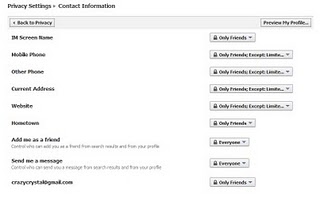
A) Check your privacy settings and set most of your information to "only friends." Did you realize that if your information is set to "everyone" that when you "fan"/"like" a page then the administrator of that group can add a fan box (as I described above) to a web site and your profile can be featured and clicked on and your information will be public for all to see?
B) Learn how to utilize friend lists to give different groups of people different access rights to your information. For example, my students are all on their own "students" list and I block personal information such as web site, phone number, and address from them.
C) Decide if you want to be publicly searchable by search engines. I don't, but I do allow people to search for me within Facebook so that they can add me as a friend.
Did you know that the Library of Congress is archiving public tweets?
Take a look at your Twitter settings too. I let people search for me by my e-mail address so they can request to follow me, but I don't keep my tweets public or add location to them. (I'm actually much more selective about who I follow/allow to follow me on Twitter than I am with Facebook--in general only people in Seattle or family I connect to via Twitter.)
I show my students this ACLU Pizza Palace video in class and we discuss privacy issues and how to check these settings. I suggest you check your own settings and maybe even Google yourself and see what you discover.
Technology is awesome, but make sure you're protecting your privacy.
If you're in my school district and would like some coaching on protecting your privacy I'd be glad to set up a one-on-one with you sometime in June or over the summer to help you out.
Note: Another learning opportunity about this important issue is the 10Tech Summer Conference. Rob Morrow, Jr., teacher at Tahoma High School, will be teaching a class on managing your digital privacy during session 4D on Wednesday, June 23.
Recently I added a Facebook fan box to our school web site that spotlights our district's Facebook page. The box shows 4 members at random inside the box. Someone at the district level pointed out that by clicking on one of the featured members you are taken to that person's profile page and teachers might not appreciate being found so easily... so we should take down the box. I counterpointed by saying this is a teaching point for people using Facebook (or other social networking sites) and we should be informing teachers that this is happening and how to prevent it instead of "protecting" the teachers by removing the box.
So here's my attempt at explaining some privacy issues and some ways that you should protect yourself.
Be aware of the privacy policies of sites you are using.
On Facebook specifically, here are a few things I hope you're aware of and utilize.
A) Check your privacy settings and set most of your information to "only friends." Did you realize that if your information is set to "everyone" that when you "fan"/"like" a page then the administrator of that group can add a fan box (as I described above) to a web site and your profile can be featured and clicked on and your information will be public for all to see?
B) Learn how to utilize friend lists to give different groups of people different access rights to your information. For example, my students are all on their own "students" list and I block personal information such as web site, phone number, and address from them.
C) Decide if you want to be publicly searchable by search engines. I don't, but I do allow people to search for me within Facebook so that they can add me as a friend.
Did you know that the Library of Congress is archiving public tweets?
Take a look at your Twitter settings too. I let people search for me by my e-mail address so they can request to follow me, but I don't keep my tweets public or add location to them. (I'm actually much more selective about who I follow/allow to follow me on Twitter than I am with Facebook--in general only people in Seattle or family I connect to via Twitter.)
I show my students this ACLU Pizza Palace video in class and we discuss privacy issues and how to check these settings. I suggest you check your own settings and maybe even Google yourself and see what you discover.
Technology is awesome, but make sure you're protecting your privacy.
If you're in my school district and would like some coaching on protecting your privacy I'd be glad to set up a one-on-one with you sometime in June or over the summer to help you out.
Note: Another learning opportunity about this important issue is the 10Tech Summer Conference. Rob Morrow, Jr., teacher at Tahoma High School, will be teaching a class on managing your digital privacy during session 4D on Wednesday, June 23.
Friday, May 7, 2010
A New Outlook on Planning
Earlier this year, Tina Newbrey and Melissa Morlock at Lake Wilderness started to use an Outlook calendar for planning and keeping track of lessons. Each teacher created a new calendar that has the job of storing their lessons for each week. Both teachers state that their favorite thing about using this instead of a paper plan book is that they have access to the calendar anywhere. This came in handy earlier this winter when Melissa was sick and had to plan from home. Other benefits of using the Outlook calendar include the ability to color code different subject areas, you can set reminders for different lessons, and re-scheduling lesson plans is less complicated.
If you need help setting up a new calendar in Outlook, see a 10Tech Teacher Leader in your building.
Thursday, March 18, 2010
Advertised Programs: Google Earth and Picasa Have Arrived
Just this week both Google Earth and Picasa (a photo editing program) were added to the growing number of programs offered to certificated staff laptops through Advertised Programs. We are particulalry excited to offer staff Picasa because it works with the integrated camera in your laptop. Yes, now you can take your picture and capture video with your laptop! If you're likely to install Picasa, visit the Advertised Programs page of this blog to find out more.
What's an Advertised Program?
“Advertising programs” is how we are providing optional programs (e.g. iTunes, Google Earth, etc.) for certificated staff laptops. Individual users determine whether or not to download and install these programs based on their particular needs. To find your advertised programs follow this path: Start→Control Panel→Programs→Run Advertised Programs. Then, select and run the programs you’d like to install. (This 3-minute video shows you how it’s done: http://vimeo.com/9865333)
Why advertise programs? Why not just push them out to everyone?
With each new application you add to your laptop, you add another layer of complexity. How well does Google Earth behave with Adobe Premiere Elements? Does Picasa play well with iTunes? Truth be told, we don't know. All advertised programs are downloaded and tested before being advertised to staff, but there's no way to test every possible combination before advertisement. So, think of it this way: When you get a newly imaged laptop, you're getting the base model. No air conditioning, no sun roof, no GPS, no custom speakers. The base model is solid and should include everything that is essential, but it doesn't have some of perks people want. Those you can add later, but when you do, you might encounter unanticipated problems. Let's say you take your base model and have a fancy new radio installed. After that installation, you notice that your heat won't turn off. You take the car in to be fixed. Is it a problem with the base model? Probably not--it's probably a problem that occured because of the new radio installation. How can we be sure? Let's remove the radio. Ah, now the heat turns off--problem solved. Advertised programs works the same way. If your laptops starts encountering problems after you install something we can just uninstall it and see if that fixes the problem. Or, in some cases, we can return you to the base model (reimage your laptop) knowing it will work just fine. If the image included ALL the optional programs, we'd have to spend countless hours problem-solving and perhaps rebuilding the image.
Important Details about Advertised Programs
• After re-imaging, you will need to re-install any optional programs you had previously downloaded. They will be waiting for you in Run Advertised Programs.
• If you have recently been reimaged and are running Windows 7, you will notice that the Adobe Digital School Collection, as well asWindows Movie Maker have been moved to Advertised Programs.
• In the future, as new programs are added to Advertised Programs, we’ll let you know about it here.
What's an Advertised Program?
“Advertising programs” is how we are providing optional programs (e.g. iTunes, Google Earth, etc.) for certificated staff laptops. Individual users determine whether or not to download and install these programs based on their particular needs. To find your advertised programs follow this path: Start→Control Panel→Programs→Run Advertised Programs. Then, select and run the programs you’d like to install. (This 3-minute video shows you how it’s done: http://vimeo.com/9865333)
Why advertise programs? Why not just push them out to everyone?
With each new application you add to your laptop, you add another layer of complexity. How well does Google Earth behave with Adobe Premiere Elements? Does Picasa play well with iTunes? Truth be told, we don't know. All advertised programs are downloaded and tested before being advertised to staff, but there's no way to test every possible combination before advertisement. So, think of it this way: When you get a newly imaged laptop, you're getting the base model. No air conditioning, no sun roof, no GPS, no custom speakers. The base model is solid and should include everything that is essential, but it doesn't have some of perks people want. Those you can add later, but when you do, you might encounter unanticipated problems. Let's say you take your base model and have a fancy new radio installed. After that installation, you notice that your heat won't turn off. You take the car in to be fixed. Is it a problem with the base model? Probably not--it's probably a problem that occured because of the new radio installation. How can we be sure? Let's remove the radio. Ah, now the heat turns off--problem solved. Advertised programs works the same way. If your laptops starts encountering problems after you install something we can just uninstall it and see if that fixes the problem. Or, in some cases, we can return you to the base model (reimage your laptop) knowing it will work just fine. If the image included ALL the optional programs, we'd have to spend countless hours problem-solving and perhaps rebuilding the image.
Important Details about Advertised Programs
• After re-imaging, you will need to re-install any optional programs you had previously downloaded. They will be waiting for you in Run Advertised Programs.
• If you have recently been reimaged and are running Windows 7, you will notice that the Adobe Digital School Collection, as well asWindows Movie Maker have been moved to Advertised Programs.
• In the future, as new programs are added to Advertised Programs, we’ll let you know about it here.
Netbook Excitement at Shadow Lake
For the first netbook activity, students used kid-friendly search engines that Stephanie posted on her Web page to explore information about space. To start, the class brainstormed a list of search terms and Stephanie recorded them using the document camera. This ensured that the words (soon to be search terms) were spelled correctly. After students finished their exploration, they proceeded to generate questions about space. This activity culminated in astronomy PowerPoint projects.
Since every student had a netbook, each created their own astronomy PowerPoint. Each slide contained a fact and a picture that related to their fact. Students were required to have a minimum of five facts but many students were excited enough to include many more.
To see more finished products, visit Stephanie’s SWIFT site.
Students also used the netbooks to publish their writing. Before they could publish they needed to edit with a friend and conference with Stephanie. Previously, with only four computers in the classroom, this was a difficult task as students would sign up to publish and then have to wait for their turn. With the netbooks, the excitement level never dropped as the students didn’t have to wait to publish.
Finally, Stephanie’s students used the netbooks to work on keyboarding skills, reading, and math. For instance, in math the students went to Stephanie’s SWIFT site and played specific fraction games that she had posted. This extra practice with fractions increased the number of students that mastered sometimes daunting fraction concepts.
“We haven’t had the net books for two days now and students are constantly asking for them," Stephanie said. "They truly stimulate the learning process and motivate kids to go beyond the basics. We definitely need more sets of netbooks because they are booked all this week and now we have to wait until next week to use them again. My students are very disappointed. Netbooks are a powerful learning tool!”
Monday, March 15, 2010
Time to Make Those Summer (Learning) Plans
Believe it or not, we’re already starting to plan for this summer’s 10Tech Summer Conference, June 22-24 at Tahoma High School. This is the third year we’ve offered this opportunity to ALL staff of the Tahoma School District, and this year we’re planning on opening our doors to our colleagues in a few other districts as well. The conference is free for Tahoma District staff; it will cost $30 a day or $75 for all three days for those who join us from other districts. If you know someone outside our system who might like to be invited, let Kimberly Allison know and she will make sure they get registration information when it is ready.
This year’s conference will follow the same format as previous years—90-minute concurrent sessions (each with approximately 5 different choices) followed by two hours of the very popular Collaborative Implementation Planning time—time for learners to review, practice, and explore their learning from the day in a supportive and fun environment. (Yes, there will of course be afternoon snacks and prizes!)
These classes are the best. At first I worried that I would not be able to do any of these skills and now I can’t think of a day I don’t use what they taught me. Tech 10 classes are fun, enlightening, and rewarding. Plus, they feed you, give out cool door prizes and you get free clock hours to boot!—Marie Page, Teacher, THS
The classes help rejuvenate me. They make me want to go out and try new things, start something I have already learned about but never tried or try something I currently do in a new way. The work time at the end of the day with knowledgeable staff available for questions is priceless! –Christine Thurston, Teacher, SLESJune 22 may seem a long way away, but here are three ways you can get involved now:
- Tell us what you want to learn! To suggest sessions you’d like to see offered at the conference, go to http://www.wallwisher.com/wall/10Tech
- Teach for us! To propose a session you’d like to teach, fill out the Summer Conference Session Proposal Form and submit your proposal. Proposals are due March 31. If you are chosen to present, you will be paid the presenter rate of $75 per hour of instruction. (Each 90-minute session you teach=$112.50.)
- Mark your calendar and plan to attend the 3rd Annual 10Tech Summer Conference, June 22-24, 2010, 8:00-4:00, Tahoma High School. Registration will open sometime in late April.
Active ActivBoard Use at Cedar River
This is Patty Stillmaker’s second year teaching math with an ActivBoard in her classroom. Now that she has become more familiar and comfortable with it, her goal is to incorporate more active learning strategies to get her students working at the board regularly. In fact, she is one of the district TTTLs, designing the professional development classes for the newest ActivBoard software.
Students are frequent users of the ActivBoard in Patty’s classroom. Anytime she can put active learning strategies into her lessons she does. At first, letting go of control over her ActivBoard was scary for Patty. But moving toward a more student-centered classroom has been very rewarding. Not only does it free her up to work with students individually, but it helps to get students excited about math. She has seen her students’ engagement level rise as they jockey to “show off” at the board.
Patty and other Cedar River math teachers went even further and had the Activboard software installed onto the computers in the labs at Cedar River. Now students are able to create simple flip charts to review, teach math concepts to others, and demonstrate their learning. This integration of technology has given Patty a chance to teach math concepts in new ways.
The ActivBoard is but one of many ways that we can amplify our teaching through technology. Patty's experience is a great example of why we are all very thankful to the voters and the school district for investing in our students by acquiring classroom technology tools.
Students are frequent users of the ActivBoard in Patty’s classroom. Anytime she can put active learning strategies into her lessons she does. At first, letting go of control over her ActivBoard was scary for Patty. But moving toward a more student-centered classroom has been very rewarding. Not only does it free her up to work with students individually, but it helps to get students excited about math. She has seen her students’ engagement level rise as they jockey to “show off” at the board.
Patty and other Cedar River math teachers went even further and had the Activboard software installed onto the computers in the labs at Cedar River. Now students are able to create simple flip charts to review, teach math concepts to others, and demonstrate their learning. This integration of technology has given Patty a chance to teach math concepts in new ways.
The ActivBoard is but one of many ways that we can amplify our teaching through technology. Patty's experience is a great example of why we are all very thankful to the voters and the school district for investing in our students by acquiring classroom technology tools.
Subscribe to:
Posts (Atom)